How much mobile data do you need for travel?
Estimate travel data from your own phone history, trip length, video and hotspot plans, then add a practical buffer without overbuying blindly.
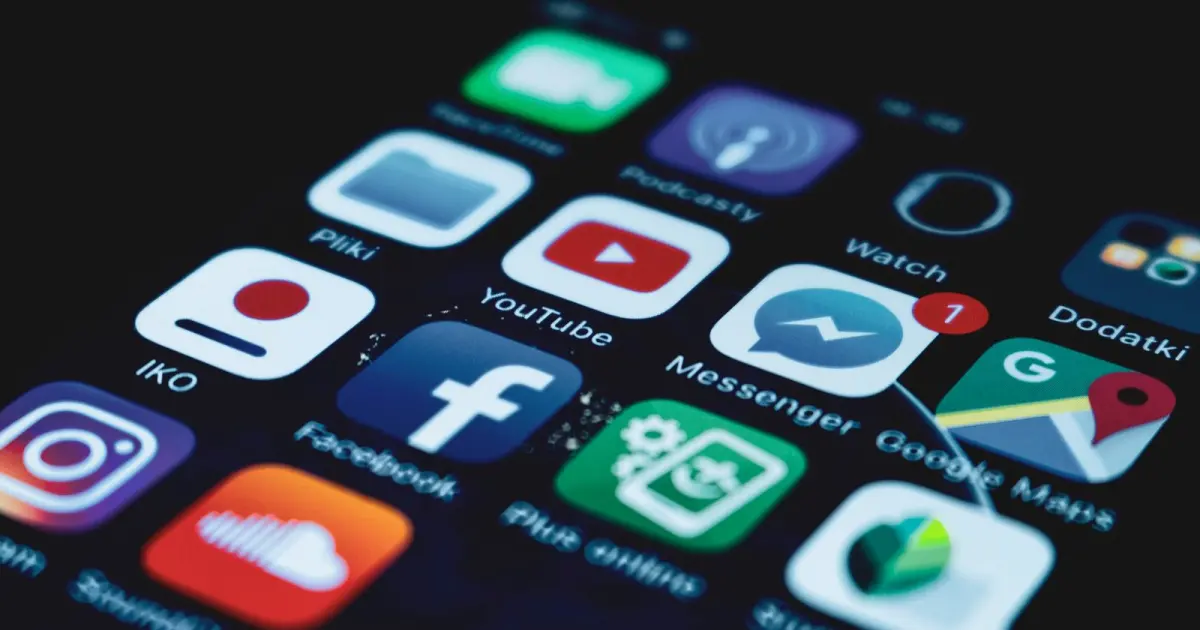
The most reliable travel-data estimate starts with your own mobile usage, not a generic chart. Measure a normal week or month on the phone, adjust for the way the trip will change your habits, multiply by the number of travel days, and add a buffer. For many trips, a 20 percent buffer is enough to cover navigation, booking changes, and a few Wi-Fi failures without doubling the plan size.
The phone and provider may count data differently. Use the device history to plan, then use the travel provider's counter as the final authority for the package balance.
Use your current phone as the baseline
On iPhone, open Settings > Cellular to see data use by app for the current period. Apple lets you reset the statistics at the bottom of that screen. Reset them at the start of an ordinary week, then review the total after seven days. Avoid choosing a week dominated by an unusual event unless the trip will have the same behavior.
On a Pixel, open Settings > Network & internet > SIMs > App data usage. Google lets you select a period and inspect usage by app. Other Android phones usually place the same information under Connections, Mobile network, or Data usage.
Write down:
- Total mobile data for the measured period.
- The largest apps.
- Whether the period included commuting, navigation, video, and hotspot use.
- How often Wi-Fi carried activity that will move to mobile data while traveling.
A home baseline can understate travel use if maps, translation, transport apps, and photo uploads move onto cellular. It can overstate it if the trip includes hotel Wi-Fi and less streaming. Adjust the known differences rather than applying one universal allowance.
Calculate a trip estimate
Use this simple model:
Estimated data = daily baseline × travel days + trip-specific use + buffer
Suppose the phone used 7 GB during a measured 14-day period. The daily baseline is 0.5 GB. For a 10-day trip, that is 5 GB. If laptop tethering is expected to add 2 GB, the working estimate becomes 7 GB. A 20 percent buffer brings the purchase target to about 8.4 GB, so a 10 GB package is a reasonable fit.
The 20 percent buffer is an editorial planning rule, not a measured industry standard. Use a larger buffer when top-ups are unavailable, expensive, or difficult to buy at the destination. Use a smaller one when the profile supports instant top-ups and reliable Wi-Fi is part of the plan.
Planning ranges when you have no history
If no clean device history is available, these broad ranges can start the calculation:
| Travel pattern | Planning range | Typical behavior |
|---|---|---|
| Light | 0.25 to 0.5 GB per day | Messaging, email, maps, tickets, brief browsing |
| Moderate | 0.75 to 1.5 GB per day | Frequent maps and social apps, some music, short video |
| Heavy | 2 to 4 GB or more per day | Regular video, large photo uploads, work calls, hotspot use |
These are planning ranges, not promises about what an app consumes. Video quality, automatic downloads, cloud backup, and app behavior can move a day far outside the range. A traveler who streams one long high-resolution video can use more than another traveler uses across several days of maps and messages.
Account for the activities that change the result
Video and video calls
Video is sensitive to quality settings and network conditions. Streaming services may raise quality on a fast connection, while video calls adapt in both directions. Download entertainment on Wi-Fi and choose a lower cellular quality if the allowance is fixed.
Maps and navigation
Turn-by-turn navigation is usually less dangerous than downloading large media libraries, but map downloads, satellite imagery, and repeated searches still add up. Save offline maps for the areas you will visit and update them before departure.
Photos and cloud backup
A camera roll can quietly become the largest data user when cloud photo backup runs over cellular. Review Photos, Google Photos, iCloud Drive, and other backup settings. Upload on trusted Wi-Fi unless immediate backup is worth the allowance.
Laptop hotspot use
A laptop may download operating-system updates, sync folders, preload media, and refresh mail archives as soon as it sees a hotspot. Add hotspot use separately rather than treating the phone baseline as sufficient. The tethering guide covers plan rules and device settings.
Reduce use without making the phone useless
- Download maps, tickets, playlists, podcasts, and language packs on Wi-Fi.
- Turn off cellular access for cloud backup and large app stores.
- Use Low Data Mode on iPhone or Data Saver on Android when appropriate.
- Disable automatic video playback in social apps.
- Set video and music quality explicitly instead of leaving it on automatic.
- Check the package counter each day for the first two or three days.
- Set an Android data warning below the package limit.
Apple notes that Low Data Mode pauses some automatic updates and background tasks. Google lets Pixel users set a data warning or a hard device limit, but it also warns that the phone and carrier can measure usage differently. Leave room between a device limit and the package limit so a small counting difference does not surprise you.
Fixed data or unlimited?
A fixed package is easier to evaluate when the allowance, validity, and top-up price are clear. An unlimited package can reduce balance anxiety, but the word unlimited may sit beside a daily high-speed threshold. Read the unlimited eSIM fair-use guide before assuming all data runs at the advertised network speed.
For a multi-country trip, also decide whether one allowance should follow you across borders. The local, regional, and global plan comparison explains that tradeoff.
Make the estimate reviewable
Save four numbers with the plan decision: measured daily baseline, trip-specific additions, buffer percentage, and final package size. After the trip, compare the estimate with actual use. That one note makes the next purchase more accurate than any generic data calculator.
Sources
Updated
- 1View or change cellular data settings on iPhone
Apple Support · Accessed
- iPhone shows cellular data usage by app for the current period.
- Low Data Mode pauses some automatic updates and background tasks when not on Wi-Fi.
- 2Reduce & manage mobile data usage
Google Pixel Help · Accessed
- Pixel shows total and per-app mobile data use for a selected period.
- Pixel can set data warnings and limits, while carrier measurements may differ from device measurements.
- 3What to Do After Your eSIM Expires or Runs Out
Nomad Help Center · Accessed
- Nomad says a finite plan can expire when its data allowance is consumed or its validity period ends, whichever happens first.
- Nomad recommends monitoring data usage to avoid an interruption.
Directory
Related profiles
Saily
Saily sells local, regional, and global eSIM plans and adds app tools for web protection, ad blocking, and virtual location. It covers more than 200 destinations and offers 24-hour support. Network, 5G, hotspot, and phone-number details vary by plan and may only appear in the app.
- Updated
- 20 July 2026
Nomad
Nomad sells local, regional, and global travel eSIMs, including fixed-data and unlimited plans. Its Japan page lists the network, price, data, validity, 4G or 5G support, and hotspot use. Refunds are simpler before a plan is installed or activated.
- Updated
- 18 July 2026
Airalo
Airalo sells local, regional, and global travel eSIMs for more than 200 locations. It offers fixed-data and unlimited plans, top-ups, an app, and support in several languages. Network, voice, identity-check, and unlimited-data rules vary by plan.
- Updated
- 18 July 2026
Continue reading
More guides

When should you install and activate a travel eSIM?
Install a travel eSIM before departure only after checking when its validity begins, then connect it at your destination with the correct settings.
Read article
Can you use a hotspot with a travel eSIM?
Check whether a travel eSIM allows hotspot use, turn on tethering on iPhone or Android, and prevent a laptop from consuming the plan unexpectedly.
Read article
How to check if your phone supports a travel eSIM
Use this device, region, carrier-lock, and network checklist to confirm that your exact iPhone, Pixel, or Galaxy model can use a travel eSIM.
Read article